If you’ve ever accidentally triggered the Dictation popup on your MacBook, you know how annoying it can be. I’ve never used the Dictation function, and having the popup appear randomly is distracting. So I decided to remap the F5 key—which is the default Dictation key—into a Mute/Unmute microphone hotkey.
Here’s a walkthrough of how I did it using Karabiner-Elements and Hammerspoon.
Step 1: Remap F5 Using Karabiner-Elements
First, I ran into a limitation: macOS doesn’t let you simply assign the Dictation key as a regular hotkey. Enter Karabiner-Elements—a powerful tool for remapping keys and customizing input behavior on macOS.
Karabiner-Elements allows you to redefine your keyboard at a low level, making it possible to reassign keys that macOS normally reserves.
Remapping Strategy
In Karabiner:
-
Go to the “Modification” section.
-
Open “Function Keys”.
-
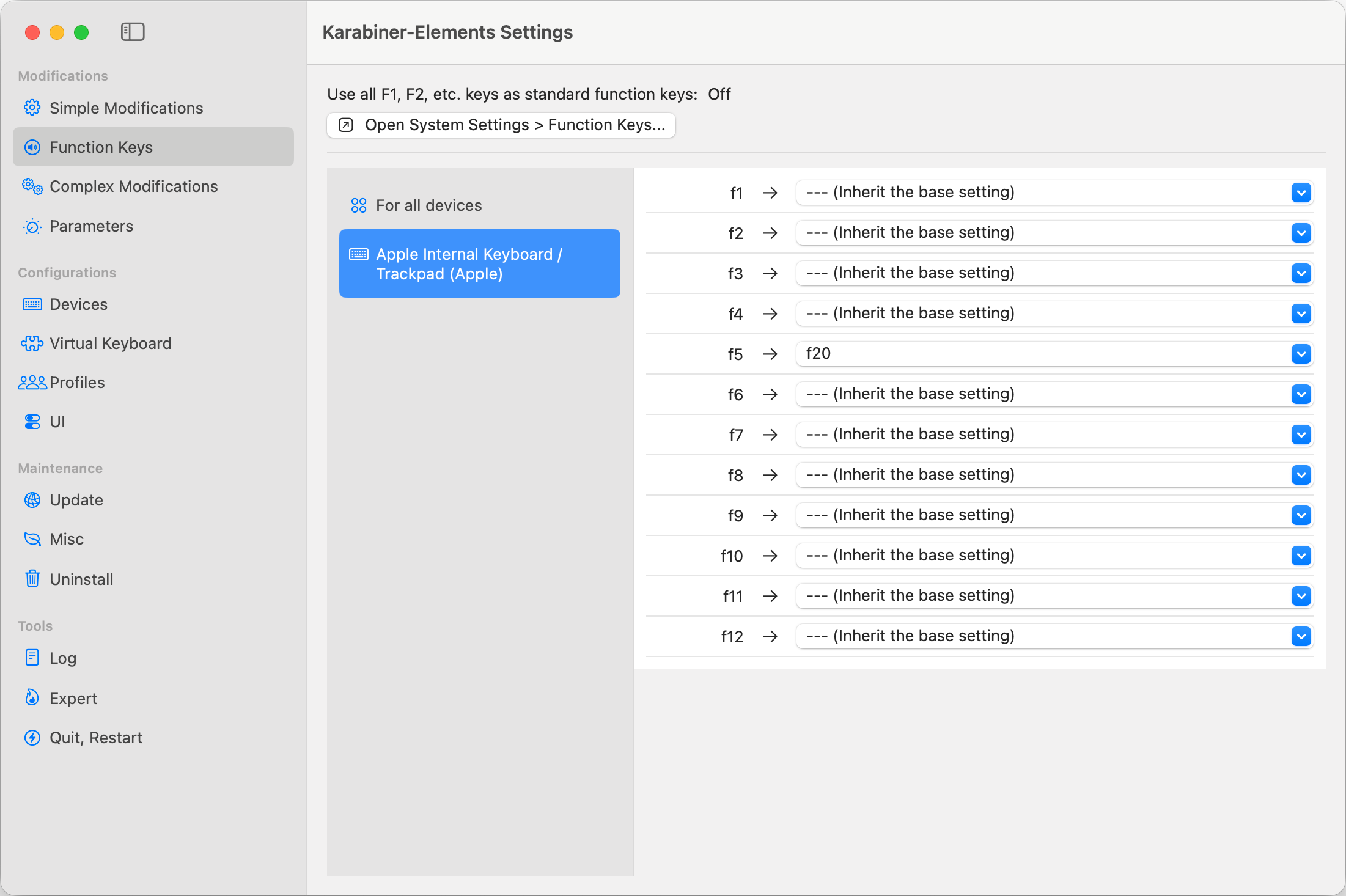
Select “Apple Internal Keyboard/Trackpad (Apple)”
-
Remap
F5 → F20.
Why F20? My Mac doesn’t have an actual F20 key, so it won’t conflict with anything. The original F5 function is still accessible via Fn + F5 because my Mac is configured to require Fn for function keys by default.
Here’s a visual of my Karabiner configuration:
Step 2: Configure a Mute Hotkey with Hammerspoon
Next, I used Hammerspoon to turn this F20 key into a real microphone toggle.
Hammerspoon is a macOS automation tool that allows you to script behaviors using Lua. You can create hotkeys, manage apps, display menu icons, play sounds, and more.
With Hammerspoon, I could:
-
Assign a hotkey to mute/unmute the mic.
-
Display a mic icon in the menu bar.
-
Play a sound when toggling.
Preparing Icons and Sounds
I added the following files to ~/.hammerspoon/:
| File | Purpose | Preview |
|---|---|---|
mic-icon-on.png |
Mic is active | 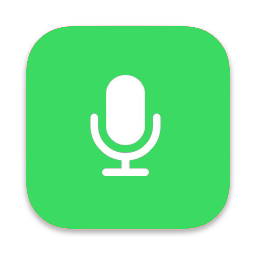 |
mic-icon-off.png |
Mic is muted | 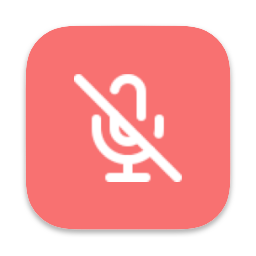 |
mute.aiff |
Sound for muting | 🔇 Audio file |
unmute.aiff |
Sound for unmuting | 🔊 Audio file |
Hammerspoon Lua Configuration
The configuration lives in ~/.hammerspoon/init.lua:
local dictationKey = "F20"
local micMenu = hs.menubar.new()

-- Load your icon
local micIconOn = hs.image.imageFromPath(hs.configdir .. "/mic-icon-on.png"):setSize({w=30, h=30})
local micIconOff = hs.image.imageFromPath(hs.configdir .. "/mic-icon-off.png"):setSize({w=30, h=30})

-- Load sound effects
local muteSound = hs.sound.getByFile(hs.configdir .. "/mute.aiff")   -- convert your mp3 to aiff
local unmuteSound = hs.sound.getByFile(hs.configdir .. "/unmute.aiff")

local function updateMicIcon()
    local mic = hs.audiodevice.defaultInputDevice()
    if mic and mic:muted() then
        micMenu:setIcon(micIconOff, false)
    else
        micMenu:setIcon(micIconOn, false)
    end
end

function toggleActiveMic()
    local mic = hs.audiodevice.defaultInputDevice()
    if mic then
        mic:setMuted(not mic:muted())
        updateMicIcon()
        -- Play sound effect
        if mic:muted() then
            if muteSound then muteSound:play() end
        else
            if unmuteSound then unmuteSound:play() end
        end
    end
end

hs.hotkey.bind({}, dictationKey, toggleActiveMic)
micMenu:setClickCallback(toggleActiveMic)

hs.timer.doEvery(2, updateMicIcon)
updateMicIcon()
Customization Ideas
This setup is flexible. You can:
-
Remove icons and sounds.
-
Show macOS notifications instead.
-
Change the hotkey or add additional automation logic.
Result
Now, pressing F5 (without Fn) toggles my mic. The menu bar icon updates in real time, and a sound plays to indicate the change. Finally, no more accidental Dictation popups!
Here's how it looks in action - the red microphone icon in the menu bar indicates the mic is currently muted:

💡 Tip: You can also click directly on the microphone icon in the menu bar with your mouse to toggle mute/unmute - no need to use the F5 key every time!
Note on Keyboard Layouts:
After installing Karabiner-Elements, some keys may appear swapped on your keyboard. This happened to me on a QWERTZ layout. The issue is caused by an incorrect Virtual Keyboard configuration. Make sure the correct keyboard type is selected in Karabiner-Elements under Configuration → Virtual Keyboard → Keyboard Type. This ensures all keys are mapped correctly according to your physical layout.